When a Samsung Tizen display freezes, is misconfigured, or has been taken over second-hand, the cleanest fix is often a factory reset. This guide walks through entering the service menu with a remote key sequence and using Factory Reset. Only do this on displays you own or are authorized to manage.
When you need a factory reset
- The display freezes, apps won't open, or it keeps restarting.
- Network, date/time or source settings are broken and can't be fixed from the menu.
- You've taken over a second-hand display, or one from another organization, and want to configure it from scratch.
- SignOS installation or pairing got stuck and you want a clean start.
Step 1: Put the display in standby with the remote
Without unplugging the power cord, switch the display off with the remote's power button so it stays in standby. Point the remote at the screen.
Step 2: Enter the key sequence on the remote
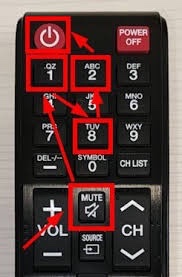
Press these keys in order, one right after another: MUTE → 1 → 8 → 2 → POWER (the red power button at the top left of the remote). The highlighted keys in the picture show the order.
Step 3: The service menu opens
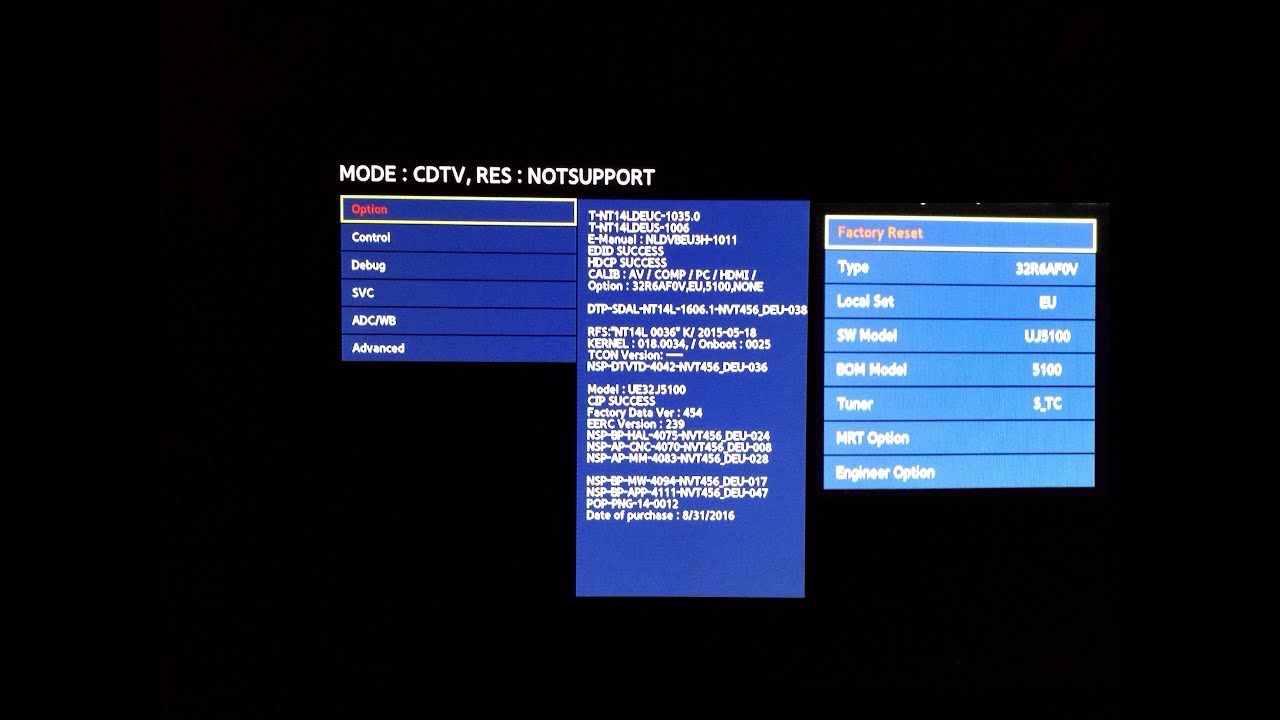
If the sequence was entered correctly, the display turns on and shows a blue service menu. The list on the left contains Option, Control, Debug, SVC, ADC/WB, Advanced; Option is selected by default.
Step 4: Select Factory Reset
In the right-hand panel of the Option menu, Factory Reset sits at the top. Move to it with the arrow keys and confirm with Enter. The display restarts and comes back up in the first-run setup wizard.
Important warning: don't touch the other service settings
Values in the service menu such as Type, Local Set, SW Model, BOM Model, Tuner, MRT Option and Engineer Option define the display's hardware configuration. A wrong change can make the display misbehave. Use Factory Reset only, and don't change anything else.
What to do after the reset
A factory reset erases all user settings and installed apps. The display returns to the first-run wizard; set language, country, network and date/time again (keep date/time on automatic). Then reinstall the SignOS app by following our Samsung Tizen / SSSP installation guide and re-pair the screen from the dashboard. To set the display up as if it were fresh out of the box, you can also follow our new Samsung display setup guide.
Resetting from the menu instead
On many models, if the display still works you can also reset from the Settings menu (Settings > General / System > Reset; the default PIN is usually 0000). If you can't reach the menu or the display doesn't respond, the service menu method above is the fallback. Key sequences and menu names can vary by model, year and remote.
Once the display is running again, see our 3-step guide to sending content to get it back on air.