Every business with a digital menu board runs into the same problem: prices change, the design doesn't. Opening the menu design every time prices go up, fixing each price by hand, exporting and re-uploading takes hours and invites mistakes. The data layer in the SignOS Editor removes that work: you update prices in an Excel file and your screens show the new prices in about 15 seconds, without touching the design.
Why updating prices the old way takes hours
- You open the menu design in a design program.
- You find and change each product's price one by one, and fix the alignment when it breaks.
- You export the design again, upload it to the panel and replace the old file in the playlist.
- If you have several menu screens or locations, you repeat all of this for every design.
The result: hours of work on the day prices change, and arguments at the counter over a price someone missed.
What is the data layer?
The data layer is a product/price list you place inside your design that takes its content from an Excel or CSV file. The design (background, images, fonts, colors) is built once; the list is read from the file. When prices change, the only thing that changes is the file.
Update prices in 15 seconds: step by step
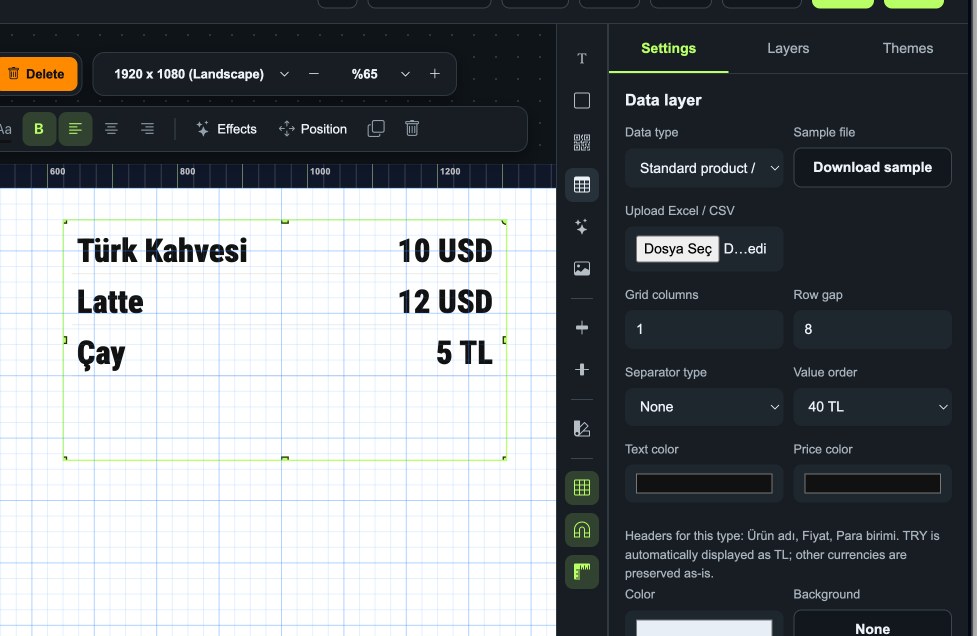
- Add a data layer: in the SignOS Editor, click the table icon in the right-hand toolbar and mark where the list should sit in your design.
- Choose the data type: select the Standard product data type.
- Download the sample file: use Download sample to get the ready-made Excel template from the panel. It has three columns: product name, price and currency; keep the header row exactly as it is in the sample.
- Enter your products: fill in your products and prices. Prices entered as TRY are shown as "TL" automatically; other currencies such as USD are kept as they are.
- Upload the file: pick your file under Upload Excel / CSV; the list appears in the design right away.
- Set the look (once): grid columns, row gap, separator type, value order (40 TL or TL 40), text and price colors.
- Save and send.
From then on, when a price changes, all you do is fix it in Excel, upload the file again and send. Zero changes to the design, about 15 seconds.
Tips
- One layer per category: use separate data layers for sections like hot drinks, cold drinks and desserts, each fed from its own file.
- Start from a theme: pick one of the ready-made themes in the SignOS Editor, add a data layer and you have a price-managed menu in minutes.
- One file, one source of truth: keep prices in a single Excel file so the price at the till always matches the price on screen.
- Combine with scheduling: plan ahead separate designs for breakfast and dinner menus.
Who is it for?
Cafés and restaurants, fast-food chains, bakeries, jewelers, currency exchange offices: any business where prices change often. For multi-location businesses, updating the prices on every menu screen with one file saves a huge amount of time.
Conclusion
A price change is a data task, not a design task. With the SignOS Editor's data layer you design once and manage prices from Excel. The sample Excel file is ready in the panel, so you can build your first menu today. For menu design tips, see our digital menu board guide.