When a business needs content for a digital signage screen, the first tool most people reach for is a general-purpose design app like Canva. It is a great tool for making graphics, but for content that lives on screens it slowly turns into a lot of extra work. This article explains that trap, and how the SignOS Editor lets you design directly inside the same panel you publish from.
The Canva trap for signage design
A menu or promotion made in Canva goes through this loop before it reaches a screen: design, export, download, upload to SignOS, add to a playlist, send. The first time, that seems fine. The problem starts when the content changes:
- Every small change restarts the loop: when a single price, date or product name changes, you open the design, edit it, export it again and upload it again.
- Static files: an exported PNG/JPG is a "dead" image; you cannot change its text, price or QR code from the panel.
- Resolution and orientation mistakes: picking the wrong size for a 1920×1080 landscape or portrait screen means cropped edges or blurry content.
- Scattered workflow: the design is in one place, files are on someone's laptop and publishing is in another panel. It gets hard to tell who uploaded which version.
- Another subscription: premium templates and team features mean paying for a separate design plan.
SignOS Editor: design and publishing in one place
The SignOS Editor is included in the SignOS panel and lets you design directly for the screen. Your design never leaves as a file; it stays in the editor, where you can open and change it any time and send it to your screens in one click.
Start in minutes with ready-made themes
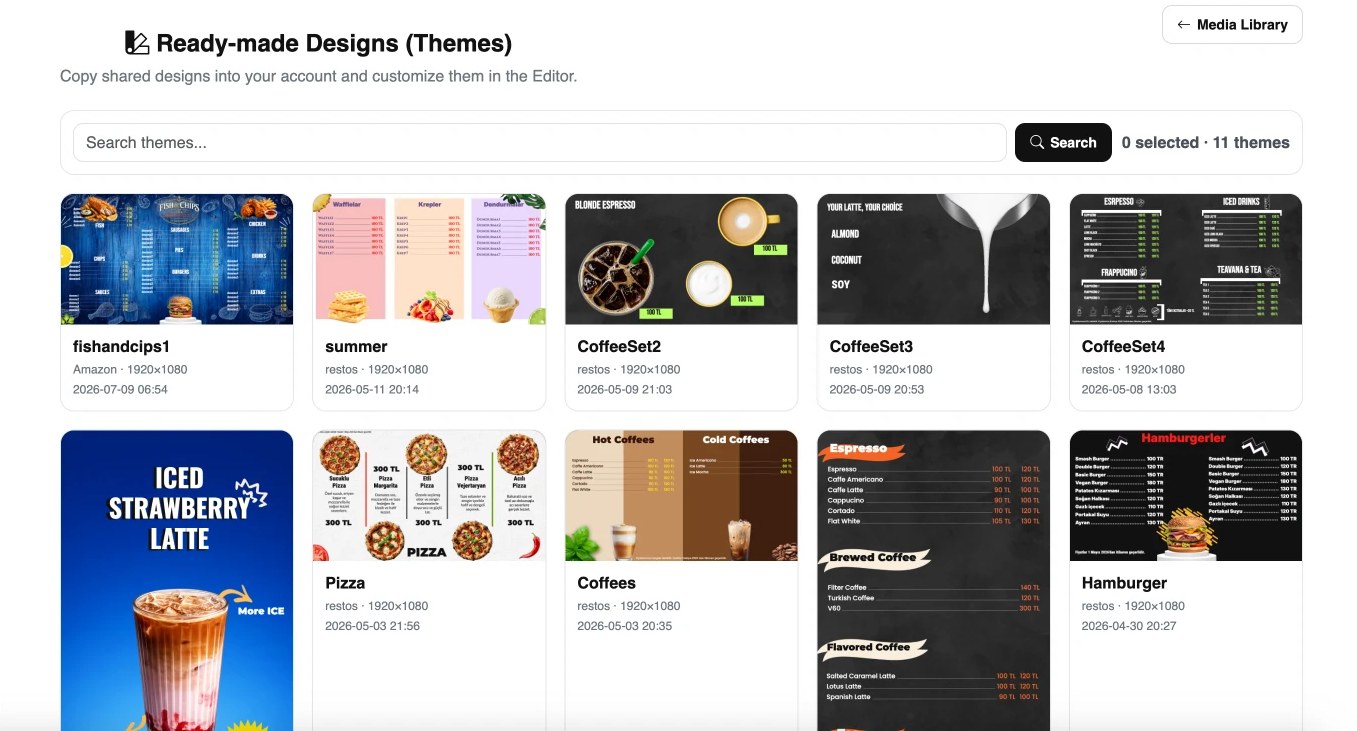
In Ready-made Designs (Themes) you will find menu board and promotion designs for coffee, burgers, pizza, waffles, fish & chips and more. Copy a theme into your account, open it in the editor and change the logo, colors, products and prices to match your business. No more starting from a blank page.
What can you do in the editor?
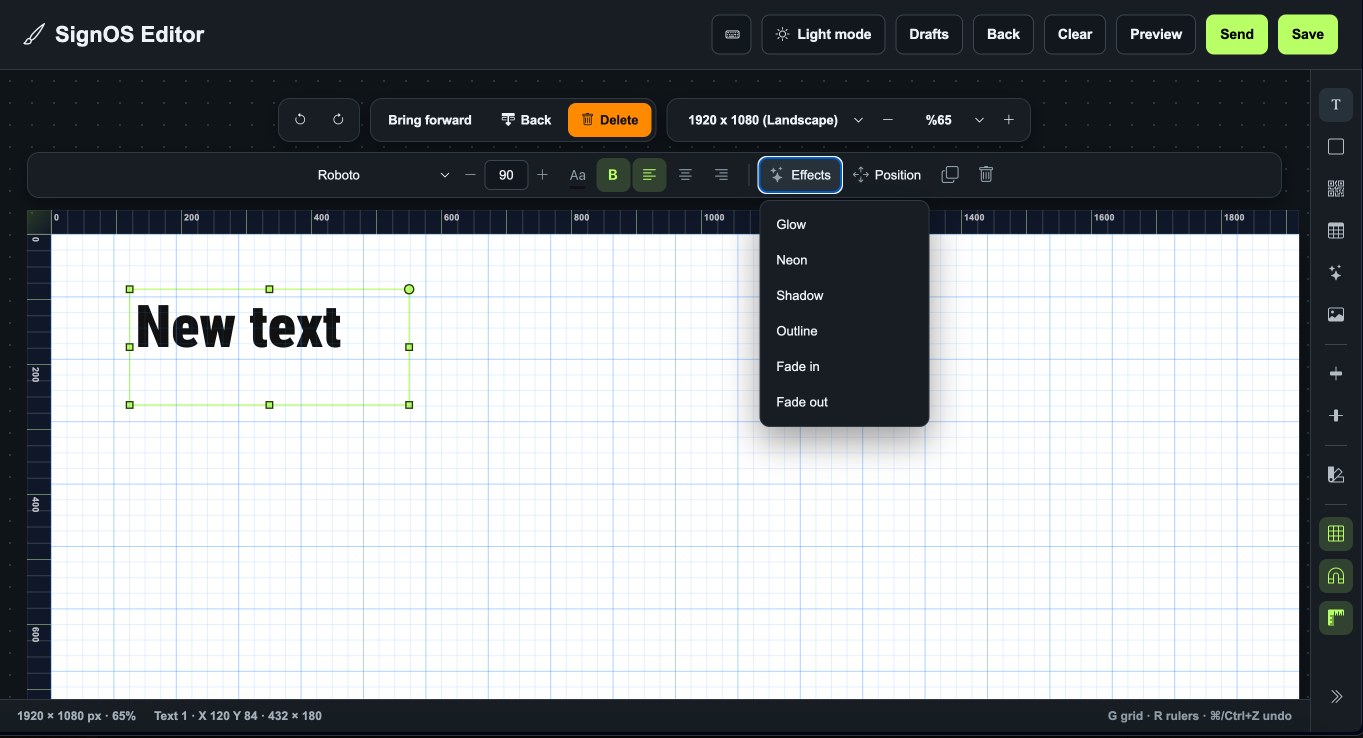
- Text and fonts: font, size, weight and alignment controls.
- Effects: Glow, Neon, Shadow, Outline, Fade in and Fade out for headlines that stand out on screen.
- Shapes, images and QR codes: add images from your library and create QR codes that link to your menu or campaign right in the editor.
- Data layer: feed a product and price list from an Excel file and update prices without touching the design. Details in this article.
- Layers and positioning: bring forward/send back, duplicate, alignment, grid, rulers and snapping for pixel-precise layouts.
- The right canvas size: a 1920×1080 landscape or portrait canvas, so you know exactly how it will look on screen.
- Drafts, undo/redo and preview: keep experiments as drafts and preview before publishing.
- Send directly: use Send to push the design to your screens without exporting anything.
Canva vs. SignOS Editor
| Canva + upload | SignOS Editor | |
|---|---|---|
| Price change | Open design, edit, export, re-upload | Edit in the editor or upload Excel, send |
| Content type | Static PNG/JPG/MP4 | Editable design + data layer |
| Screen size | Set manually | 1920×1080 landscape/portrait built in |
| Templates | General purpose | Menu board and signage themes |
| Publishing | From a separate panel | One click from the same place |
| Extra cost | Separate subscription | Included in the SignOS panel |
When is Canva still fine?
You don't have to drop Canva entirely. You can upload a graphic you already made for social media, or a video from your agency, to the library and publish it. But for menus, price lists, promotions and announcements that change often, designing in the SignOS Editor saves you hours every week.
Conclusion
Screen content is different from a social media post: it changes constantly and stays on the same screen every day. The SignOS Editor was built for exactly that, with ready-made themes, effects, QR codes and a data layer. Start from a theme, make it yours and send it to your screens. For menu board tips, see our digital menu board guide.