SIGNOS LG WEBOS
Install SignOS on LG webOS Signage
This guide covers both remote URL installation and USB installation for supported LG webOS signage screens, then explains how to pair the screen with your SignOS panel.
LG webOS Signage
Remote IPK Install
USB Install
1
Check Device Type
Make sure your device is an LG webOS signage screen. Consumer LG TV models are not supported.
2
Choose Installation Method
You can install SignOS using the remote URL method or with a prepared USB drive containing the IPK package.
3
Pair the Screen
When the application starts, use the 8-digit pair code shown on the screen to register the player in your SignOS panel.
Install with Remote URL
- Open the settings menu on the LG signage display.
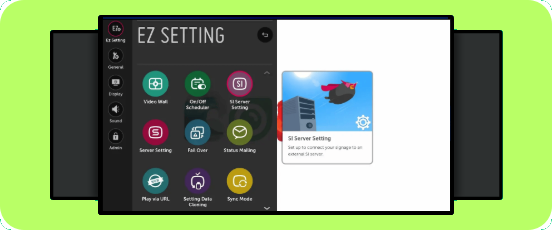
- Go to EZ Settings and then SI Server Settings.
- Enable Fully Qualified Domain Name.
- Enter the SignOS IPK URL: https://signosds.com/webos/com.lg.signos.signage.ipk
- Set Application Launch Mode to Local.
- Set Application Type to IPK.
- Set Local Application Upgrade to Remote.
- Save with Confirm, then power the screen off and on again.
Install with USB
- Format the USB drive as FAT32 when possible.
- Create a lowercase folder named application on the USB drive.
- Copy com.lg.signos.signage.ipk into that folder.
- Insert the USB drive into the LG signage display.
- Open SI Server Settings from the display settings.
- Set Application Launch Mode to Local.
- Set Application Type to IPK.
- Set Local Application Upgrade to USB, confirm, and restart the display.
Pairing with SignOS Panel
- After installation, the SignOS screen shows an 8-digit pair code.
- In the SignOS panel, click Add New Screen.
- Choose the LG webOS player type.
- Enter the 8-digit pair code and save the screen details.
Important Notes
- Consumer LG TV models are not supported. Use signage series devices.
- If USB installation fails, try another USB drive.
- If installation problems continue, update the display firmware and retry.
- Once the player starts, playlists can be assigned from the SignOS panel.
While troubleshooting, check the screen's webOS signage version and confirm the device is in signage mode before retrying installation.
Back to Downloads